The Top 10 Jira Automation Best Practices
1. Optimize Usage to Save Jira Automation Limits
When working with automation in Jira, it’s important to keep in mind the limits you have in your plan. If you don’t pay attention to this, your automation rules can stop working.
What are automation limits?
Depending on your Jira plan, your team has a specific limit for automation rules. The limits range from 100 runs/month for the Free plan to 1,000 runs/month per user for the Premium plan. The Enterprise plan offers unlimited runs – if that’s your case, you don’t have to worry about saving the limits.
For all others, it makes sense to optimize usage. Limits, even if they are high, can get used up rather quickly. If this happens, all Jira automation rules will be paused until next month, when the limits reset.
What counts as a rule run?
Every time your rule runs successfully and performs at least one action, this counts as a run. If your rule is triggered, but the conditions are not met and the target action is not performed, this doesn’t count as a run.
Example
You have a rule “When a work item is created and it has “Onboarding” in its summary, assign it to the HR specialist”. Once a new work item is created, the rule is triggered and checks whether the summary includes “Onboarding”. If it doesn’t, the rule doesn’t perform the specified action (assigning the work item). This doesn’t count as a run, even though the rule was triggered.
This approach was introduced not so long ago. Previously, every time a rule was triggered, it counted as a run. For more details on the new approach, check out How Jira automation limits are calculated.
How to save Jira automation limits?
Here are some practical tips that will help you use your limits efficiently and do more with less:
- Disable rules you don’t need. Regularly review your rules to ensure there are no “empty” runs, where a rule performs an action that isn’t truly necessary.
- Use specific triggers that are not too broad. Avoid triggers that will fire more often than you actually need. For example, instead of a broad “Work item updated”, select “Comment added” or “Description edited”.
- Narrow down the criteria as early as possible. If you have conditions that will narrow down your results, include them closer to the beginning of the rule. This way, work items that don’t fit your conditions will be filtered out early. This prevents excessive actions and also helps you improve Jira performance.
- Add multiple actions to one rule. Regardless of whether a rule performs just one successful action or several, it still counts as one run. So, it makes sense to include several actions in one rule, if possible. For example, you can group similar actions, such as editing multiple issue fields in a single “Edit work item” action.
- Use add-ons with automation capabilities. On the Atlassian marketplace, there are solutions that can extend the native Jira automation functionality. They offer extra features and allow you to surpass the limits. Depending on your usage, it may be more reasonable to pay for such an add-on rather than for a more expensive Jira plan with higher limits.
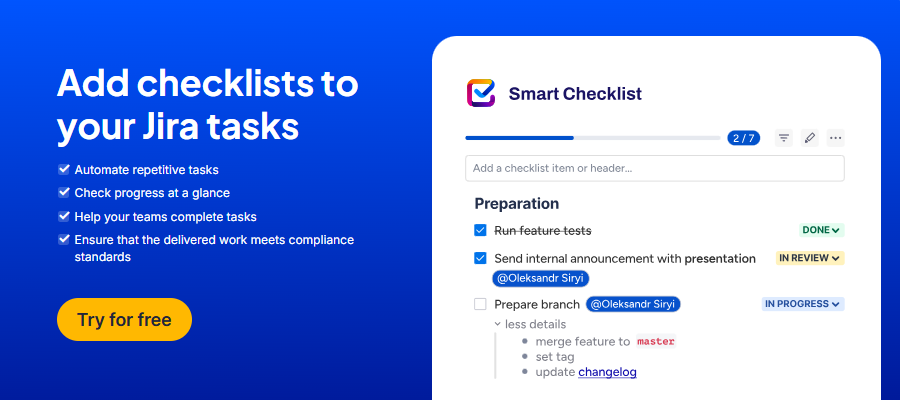
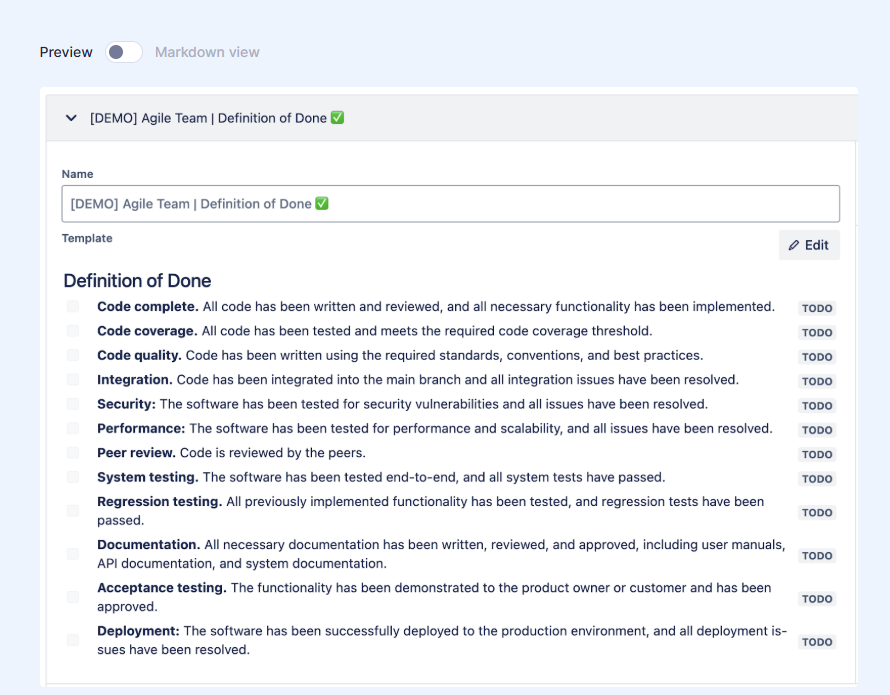
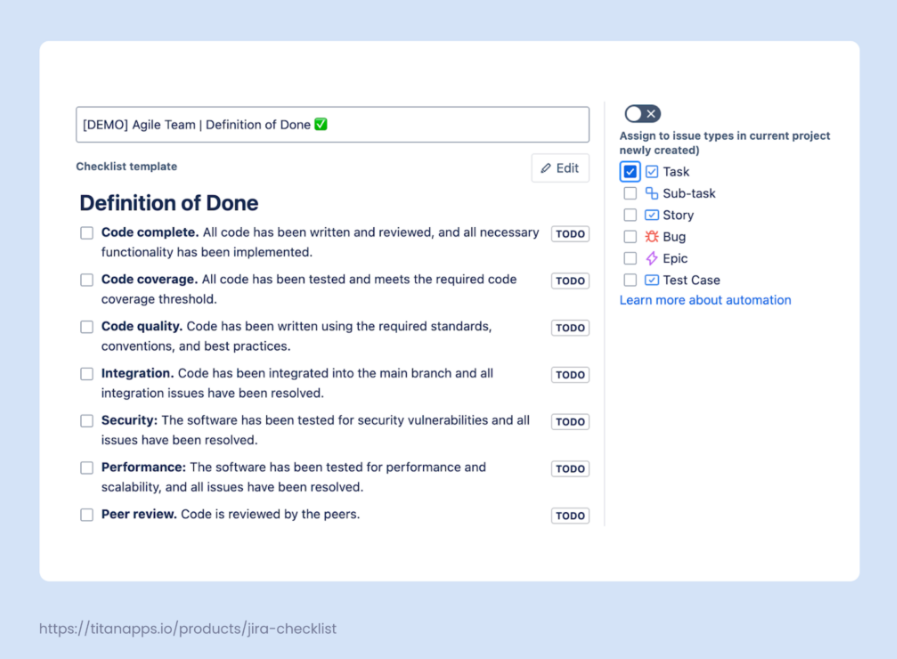
If you need to use automations frequently to standardize processes (auto-create work items, pre-fill fields, or auto-add task descriptions), I recommend trying Smart Tools for Jira. These solutions are not designed to mimic the Jira automation functionality, but they allow you to automate specific actions.
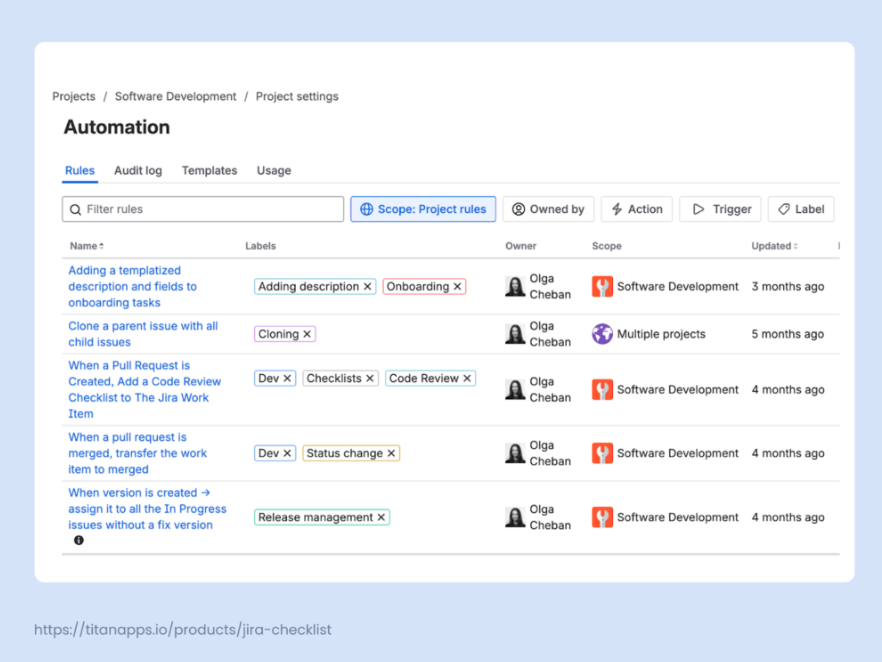
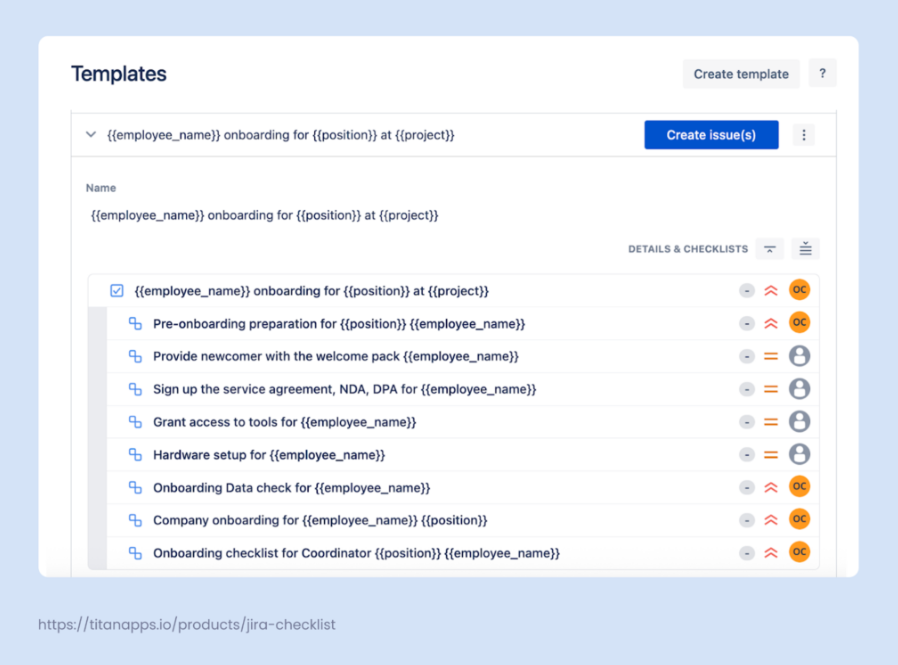
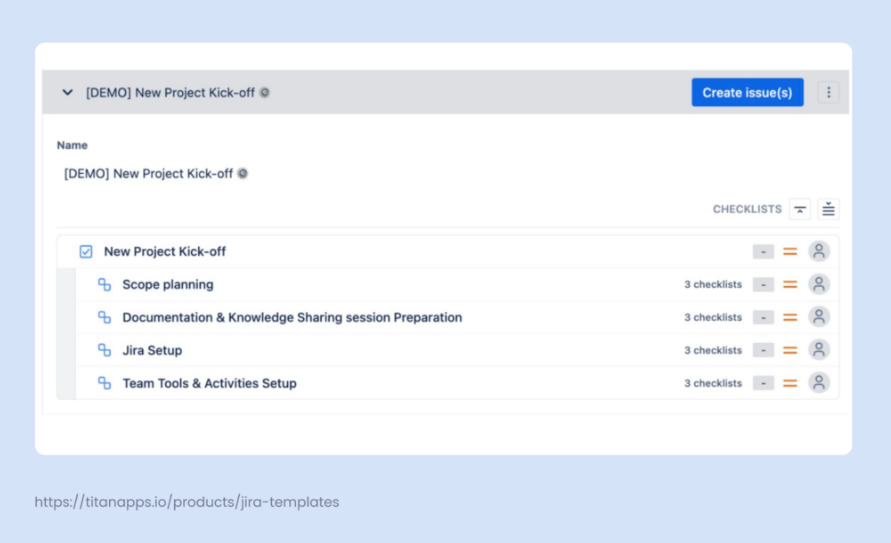
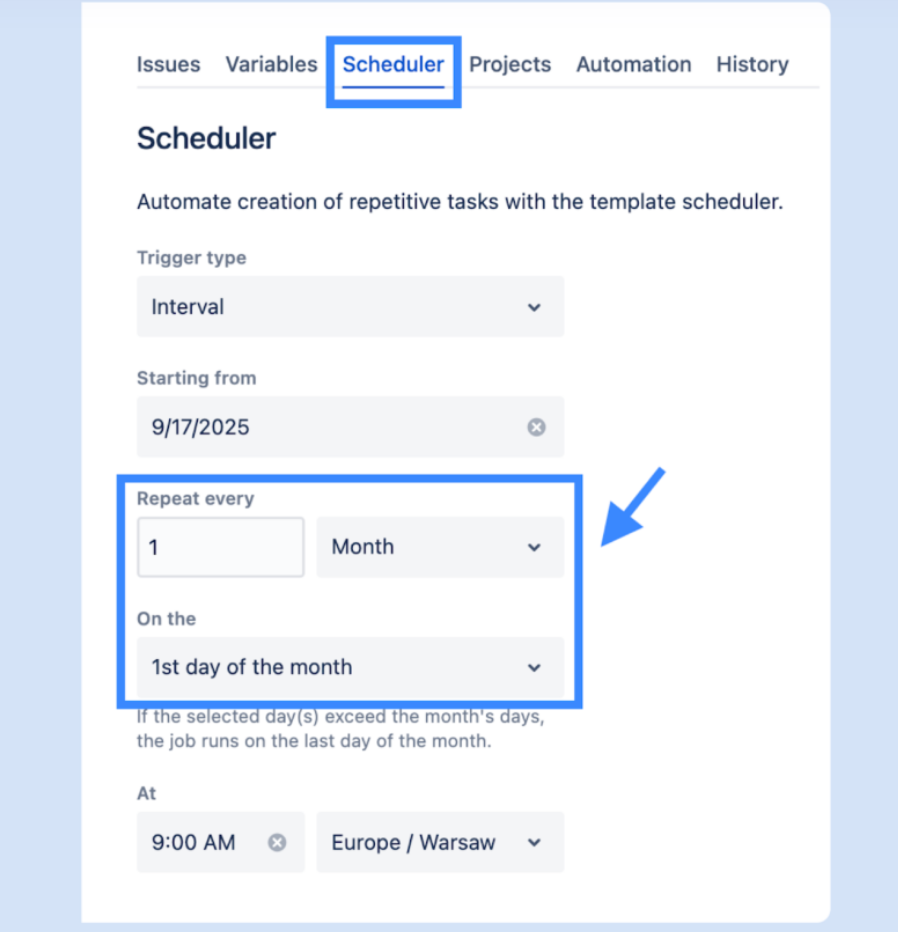
For example, Smart Checklist can automatically add checklists to your work items, and Smart Templates can generate work items on a schedule. These actions don’t consume your limits and make the setup easier for end users.
Optimizing your automation rule usage allows you to stay within limits and prevent disabling your automations.
2. Integrate Jira With External Applications
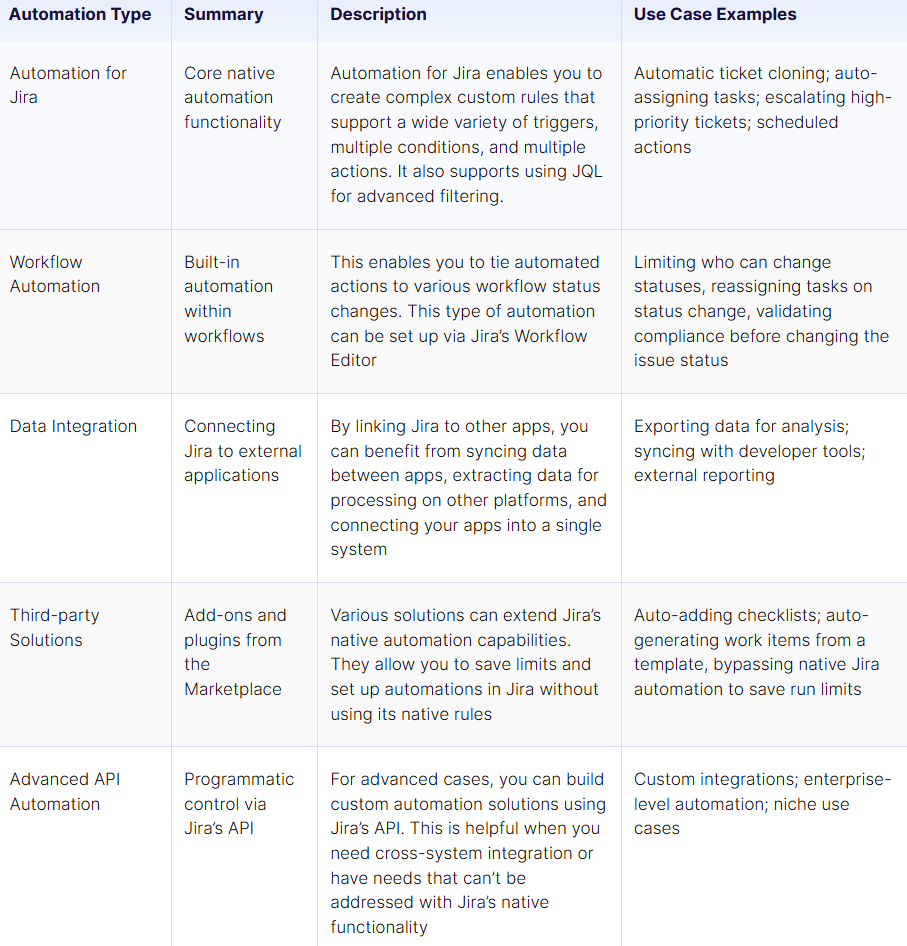
Jira automation can extend beyond Jira. To maximize benefits for your team, consider integrating it with other tools. For example, you can connect Jira to various business apps, such as Microsoft Teams, Miro, Slack, or Google Sheets. You can also integrate it with various HR applications, data analytics tools, embedded analytics solutions, BI platforms, and more.
This allows you to automate a variety of actions, from setting up custom notifications to syncing data between apps and configuring custom workflows.
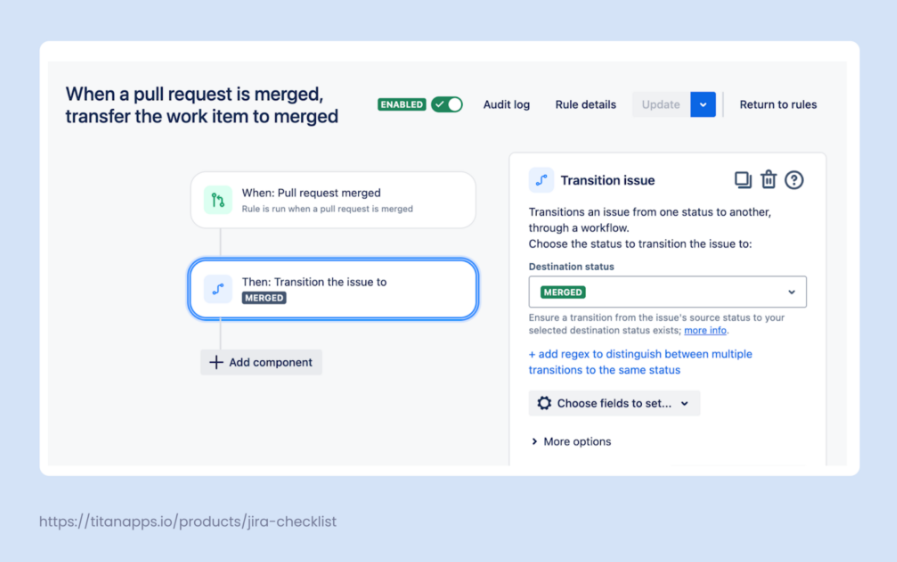
A common use case is to integrate Jira with developer tools. For example, you can connect Jira to GitHub or another Git platform. This enables you to view commit history, branch, and pull request details in Jira. Work item statuses will also be updated automatically based on Git activity. Here’s an example of an automation rule for this: